Gaming Setup with a Projector and Sound System: Complete Guide
This guide explains how to design a gaming room around a projector, screen, sound system, acoustics and room layout — rather than buying a projector first and hoping the room suits it. Every specification quoted below belongs to a specific model published by its manufacturer.
The strongest gaming rooms treat projection, sound, acoustics, lighting and control as one coordinated system.
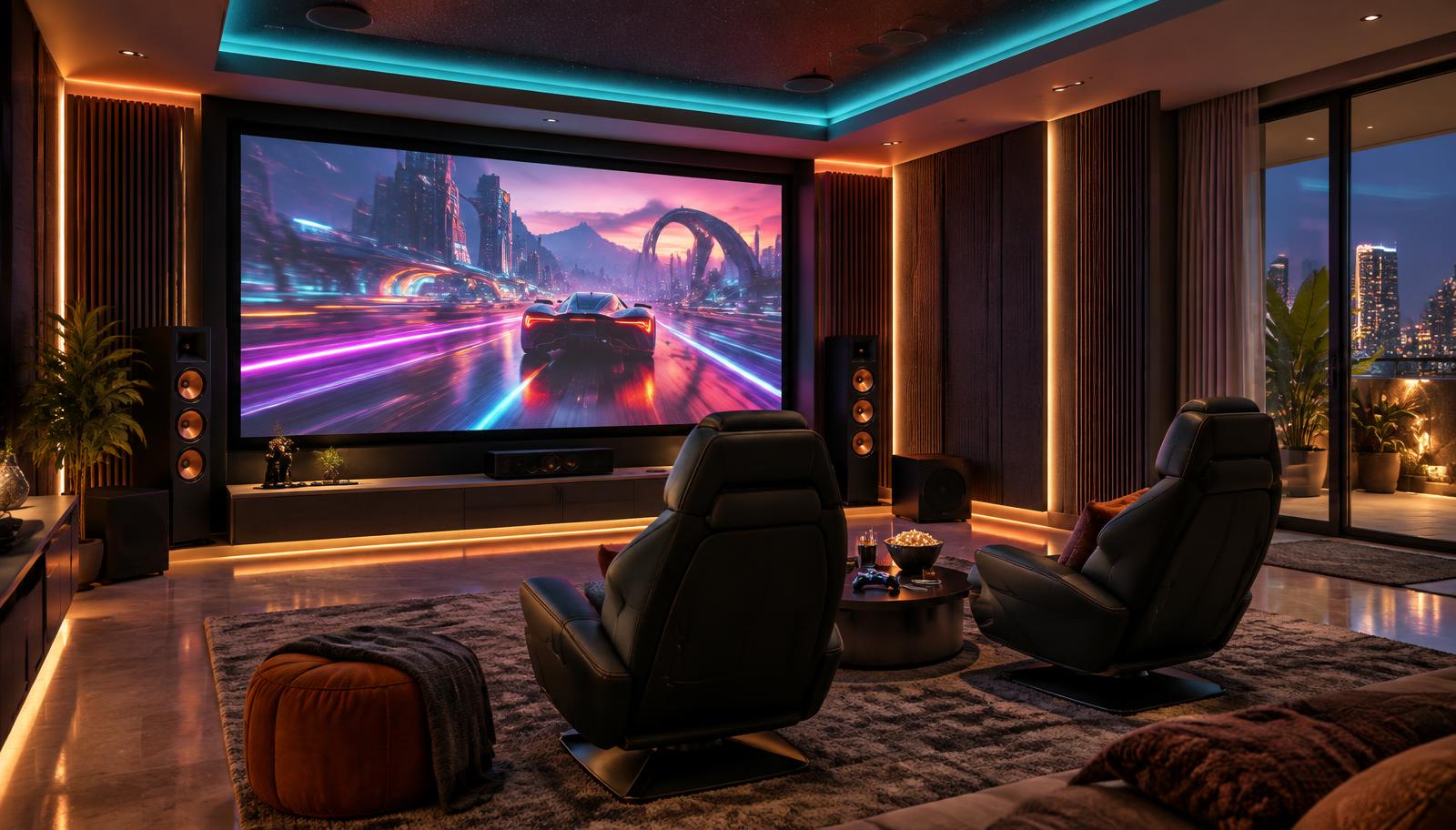
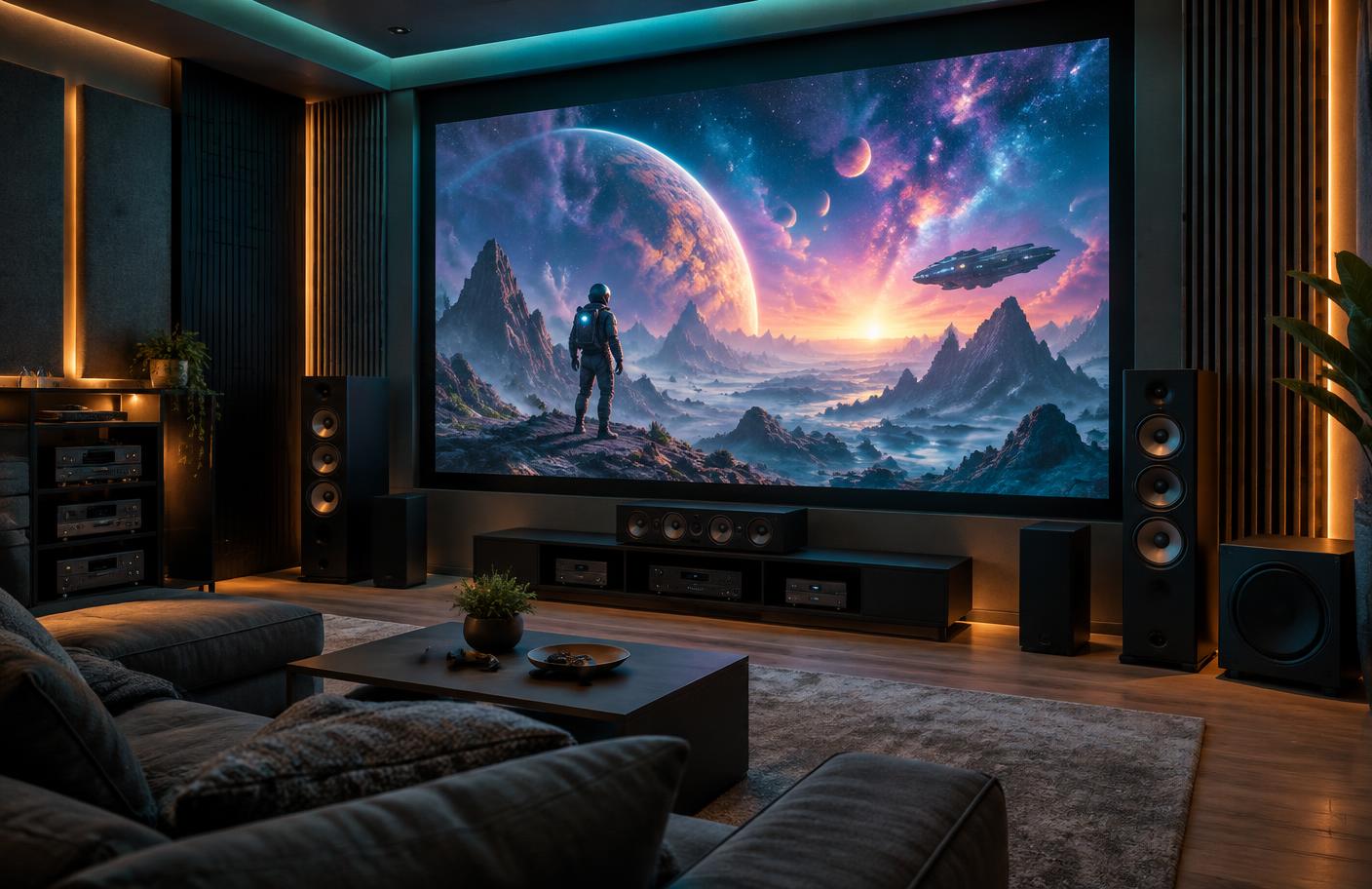
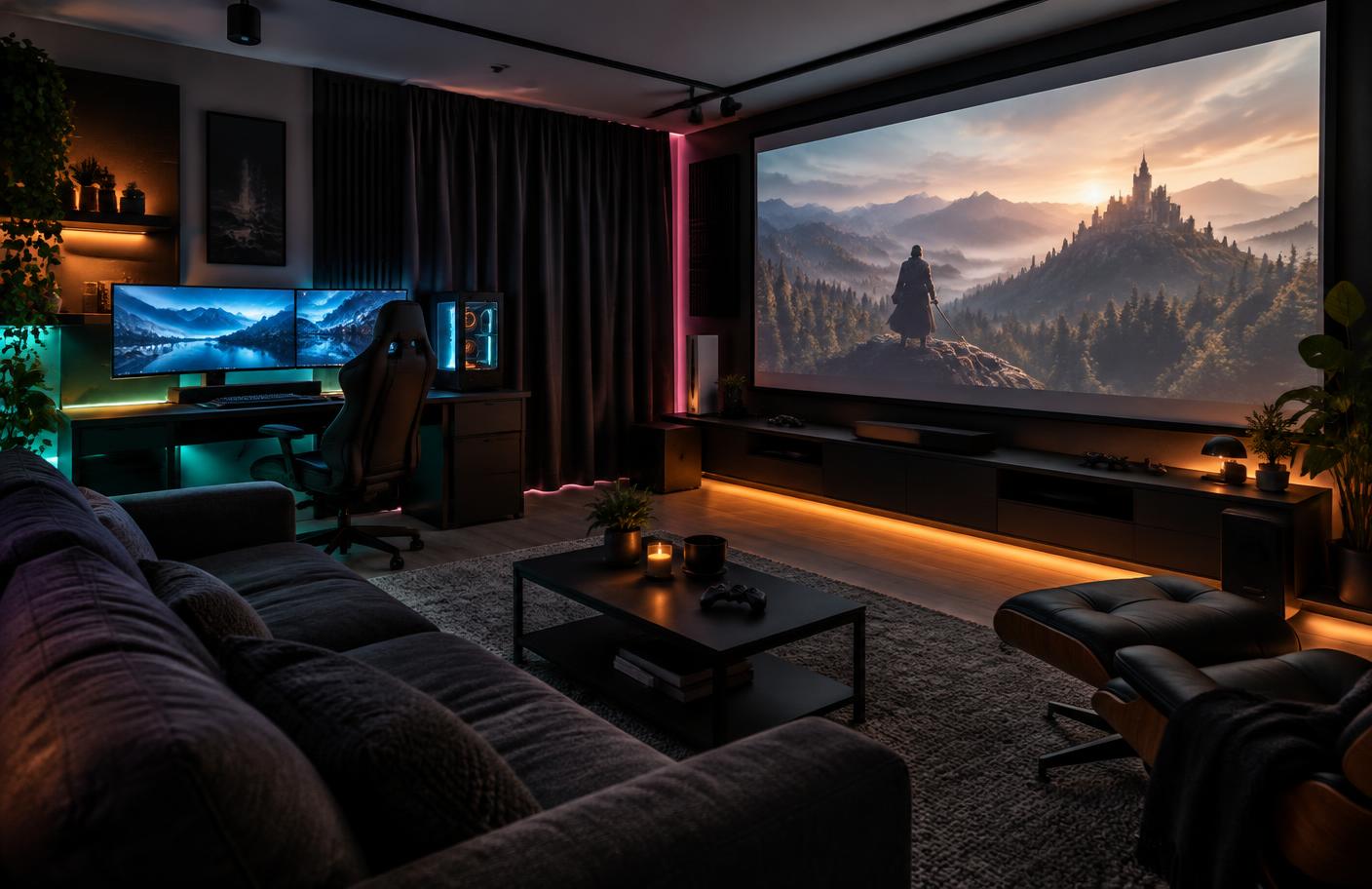
Large-screen gaming designed around the roomAudio, acoustics and picture planned togetherA compact hybrid room for console, PC and films
Can You Use a Projector for Gaming? Quick Answer
Yes. A properly selected projector can create a very immersive gaming experience, especially when you want a screen far larger than a TV can provide. The right model depends on input lag, refresh rate, resolution, VRR and ALLM support, HDMI capability, brightness, contrast, HDR, your room's lighting, the screen, the throw distance and your gaming platform. The sound system, acoustics and room design matter just as much as the projector: positional audio, bass control and a properly sized screen at the correct seating distance are what make a gaming room feel immersive.
What Does a Complete Gaming Projector Setup Include?
A gaming projector setup is a signal chain, not a single product. Video travels from your console or PC to the display; audio branches off to the sound system. Anything weak in that chain limits the whole setup — a 4K 120Hz console connected through an HDMI input that cannot carry the signal will simply drop to a lower format.
Source — PS5, Xbox Series X/S or a gaming PC; the source decides which formats are even possible
HDMI cabling — length and quality matter for high-bandwidth formats, particularly in-wall runs
AV receiver — switching, decoding and amplification for surround and Atmos layouts
Gaming console or gaming PC → HDMI cabling → AV receiver or AV processor (optional) → projector → projector screen.
Audio chain
AV receiver → centre speaker, front left and right, surround speakers, height or ceiling speakers, and one or more subwoofers.
Room layer
Lighting control, acoustic treatment, seating position, cable routing and optional smart automation that switches the whole room into a gaming scene.
Is a Projector Good for Gaming?
A projector is excellent for some kinds of gaming and a compromise for others. It is not automatically better than a gaming TV or a gaming monitor — it is a different tool with different strengths. Be honest about what you play before choosing.
Where projector gaming shines
Screen size is the reason people move to projection. Racing, flight, sports, open-world and co-op gaming benefit enormously from a 100-inch-plus image at a correct seating distance, and the same room doubles as a cinema for films and streaming.
Very large image at a viewing distance a TV cannot match
Strong sense of speed and scale in racing and flight titles
Sports and multiplayer sessions with several people watching comfortably
One room that serves both gaming and movies
Where a projector is the harder choice
Projection depends on controlled light far more than a TV does, and gaming performance varies widely between models. Installation also needs planning — placement, throw distance, cabling and power are decided before anything is mounted.
Ambient light reduces contrast; daylight gaming needs light control and a suitable screen
Input lag and refresh-rate support differ significantly from model to model
HDR behaviour varies; a supported format is not the same as a great HDR image
Competitive play may prioritise different specifications than cinematic play
What Makes a Projector Good for Gaming?
Use this table as a shortlist filter. Check every row against the specific model you are considering — never against the brand, and never against a different model in the same family.
Gaming projector specifications — what each one actually affects
Feature
Why it matters
What to look for
Input lag
Delay between your controller input and the image changing
A manufacturer-published figure for the exact resolution and refresh rate you will play at
Refresh rate
How many frames per second the projector can accept and display
Which resolution each refresh rate applies to — 240Hz is rarely available at 4K
Resolution
Detail across a very large image
Native resolution, and whether 4K is native or pixel-shifted
VRR
Reduces tearing and stutter when frame rate fluctuates
Explicit VRR support on that model, and on the input you will use
ALLM
Switches automatically into a low-latency mode
Explicit ALLM support; otherwise you switch picture modes manually
HDMI bandwidth
Decides which resolution and refresh-rate combinations pass at all
The published HDMI specification of the projector, receiver and cable
HDR
Highlight and contrast handling in supported games
Which HDR formats are supported, and whether HDR is active over HDMI
Brightness
How the image holds up against ambient light on your screen size
Lumens quoted with a standard (for example ISO lumens), matched to screen size
Contrast
Shadow detail in dark game environments
Published contrast ratio and how much of it survives in your room
Colour
Realism and consistency across HDR and SDR content
Published gamut coverage where the manufacturer states it
Throw ratio
Where the projector can physically sit for your screen size
Throw ratio range against your room length
Lens shift
Mounting flexibility without geometric correction
Vertical and horizontal lens-shift range
Screen compatibility
Whether the screen suits the projector and the room light
Gain, viewing angle, and ambient-light rejection for your layout
Gaming mode
Bypasses processing that adds delay
A dedicated gaming or low-latency mode, and what it disables
Audio connectivity
How sound reaches your speakers
HDMI eARC/ARC support, and how many HDMI inputs the projector has
Understanding Input Lag for Projector Gaming
Input lag is the total delay between pressing a button and seeing the result: controller input → console or PC processing → signal transfer → projector processing → image on screen. Every step adds a little. Image-correction features such as keystone correction, frame interpolation and noise reduction usually add more, which is why gaming modes disable them.
How much lag is acceptable depends on what you play
There is no single industry threshold, and any article quoting one as universal is guessing. Match the requirement to the genre.
Competitive FPS and fighting games — lowest achievable lag, high refresh rate, minimal processing
Racing — low lag plus strong motion handling and a large screen for peripheral cues
Action and adventure — moderate lag is usually fine; image quality matters more
RPG, strategy and open-world — prioritise resolution, contrast and HDR over latency
Casual and family gaming — screen size and sound usually matter more than milliseconds
Keep the chain clean
Use the projector's gaming or low-latency mode, turn off keystone correction and align the projector physically instead, and check whether your AV receiver has a pass-through or game mode. Not every receiver adds the same delay, so verify with your own equipment rather than assuming a figure.
Is 120Hz or 240Hz Important for Gaming Projectors?
Refresh rate is how often the display can present a new frame. It only helps if your source actually produces those frames and the HDMI chain can carry them. A projector advertised as 240Hz almost never accepts 240Hz at every resolution — the figure usually belongs to 1080p.
60Hz — fine for most single-player console gaming and all film content
120Hz — a visible improvement in fast games when the console or PC can sustain it
240Hz — relevant mainly to PC and competitive 1080p play, where frame rates go that high
Always read refresh rate together with resolution: 1080p at 240Hz, 1440p at 120Hz and 4K at 60 or 120Hz are different capabilities
Refresh rate and input lag are separate specifications — a high refresh rate does not guarantee low lag
What Are VRR and ALLM?
VRR (Variable Refresh Rate) lets the display follow the source's changing frame rate instead of a fixed one, which reduces tearing and judder when a game's frame rate fluctuates. ALLM (Auto Low Latency Mode) lets the console tell the display to switch into its low-latency picture mode automatically when a game starts.
PS5 and Xbox Series X/S both support VRR and ALLM at a console level
The display must support them too — console support alone changes nothing
The AV receiver in between must pass the feature through if it sits in the video path
PC gaming exposes VRR benefits most often, because frame rates vary the most
Check the specific projector model's published feature list before assuming support
4K Gaming Projector vs 1080p Gaming Projector
Resolution and refresh rate are separate characteristics. A projector can be 4K at 60Hz, or 1080p at a very high refresh rate, and those two serve different players. Neither is universally correct.
4K and 1080p gaming projection compared
Consideration
4K projector
1080p projector
Image detail
Holds up on very large screens and closer seating
Softer on very large screens at short viewing distances
Typical refresh focus
Often 60Hz at 4K, sometimes 120Hz on capable models
Higher refresh rates are more commonly available
Console requirement
PS5 and Xbox Series X output 4K natively
Any current console or PC
PC requirement
A GPU capable of driving 4K at your target frame rate
Easier to sustain high frame rates
Content beyond gaming
Better for 4K films and streaming
Fine for casual viewing at moderate sizes
Room suitability
Suits larger rooms and bigger screens
Suits compact rooms and shorter viewing distances
Best-suited player
Cinematic and open-world gaming plus movies
Competitive and high-frame-rate play
Projector Types for Different Gaming Rooms
Instead of a ranked list, match the projector category to how the room will be used. A model only belongs in a category when its published specifications support it.
Portable gaming projector — battery powered, easy to move; suits casual after-dark sessions rather than competitive play
1080p low-latency projector — prioritises responsiveness and refresh rate over resolution
4K home-theatre projector used for gaming — cinematic image quality with usable gaming modes
High-refresh-rate projector — publishes low latency at high refresh rates, usually at 1080p
RGB laser projector — wide colour and strong brightness for larger screens and mixed lighting
Short-throw and ultra short throw — for rooms where the projector cannot sit far from the screen
Premium dedicated gaming-room projector — installed permanently with lens shift, zoom and calibrated setup
Gaming Projector Brands and Models to Consider
Gaming suitability is model-specific, not brand-specific. LiveInSmart works across Epson, Optoma and other available projector ranges, but a model enters this guide only when current manufacturer documentation supports the exact claims shown. The Epson home-entertainment models below illustrate three different room priorities. No Optoma model is listed until a current gaming-focused model and its regional documentation are verified for this article.
Consider the EH-TW6250 when large-screen console gaming, streaming and a published under-20ms lag figure matter in one room
Consider the EH-TW7100 when the room needs more brightness and manual horizontal and vertical lens shift for placement
Consider the EH-TW9400 when cinematic contrast, powered lens controls and a dedicated dark room matter more than a published gaming-latency figure
For Optoma or another available brand, share your room and gaming requirements so the exact regional model can be checked against current manufacturer documentation
Gaming projectors to consider — manufacturer-published details; this is not a ranking
Brand
Model
Resolution
Light source
Brightness
Input lag
Refresh rate
VRR
ALLM
HDR
HDMI
Throw type
Best suited for
Product page
Epson
EH-TW6250
4K PRO-UHD with 4K Enhancement (1920 × 1080 panels, pixel-shifted)
200W UHE lamp
2,800 lumens white and colour
Under 20ms; Epson does not state the test signal
Not specified by manufacturer
Not specified by manufacturer
Not specified by manufacturer
HDR10 and HLG
1 × HDMI with ARC
Standard throw, 1.32–2.15:1
Console gaming and films in a flexible living-room setup
Start with the games, source device and room. Only then compare exact projector models. This keeps a specification that matters for one player — such as high refresh at 1080p — from distracting another player who needs cinematic contrast at 4K.
Gaming-room decision guide by player requirement
Requirement
Prioritise
Room and system note
Competitive gaming
Lowest verified input lag, high refresh, gaming mode, VRR and ALLM where documented
A monitor or gaming TV may still be the more suitable display when every millisecond matters
4K PS5 or Xbox gaming
4K handling, HDR formats, verified latency and HDMI capability
Confirm the projector and AV receiver support the same signal format
Cinematic gaming
Large image, contrast, colour, HDR and surround sound
Light control and screen quality often change the result more than headline brightness
Racing and simulation
Wide field of view, low latency, motion handling, surround sound and controlled bass
Fix the seat and controls first, then calculate the screen
RPG and open-world
Image detail, contrast, HDR and enveloping audio
A dedicated dark room supports shadow detail and atmosphere
Gaming plus movies
Balanced home-cinema picture, AV receiver, Dolby Atmos and acoustic treatment
Use separate calibrated picture presets for games and films
Small-room gaming
Throw ratio, placement flexibility, sensible screen size and compact audio
Do not oversize the image; protect walkways and ventilation
Epson Projectors for Gaming and Home Entertainment
Epson's EH-TW6250, EH-TW7100 and EH-TW9400 are home-entertainment projectors with different priorities, not three interchangeable gaming products. The EH-TW6250 is the only one here with a manufacturer-published under-20ms lag figure. The EH-TW7100 and EH-TW9400 may suit mixed gaming-and-film rooms, but Epson does not publish their input lag in milliseconds in the source material used for this guide. That distinction should shape the shortlist.
EH-TW6250 — consider it for console gaming and films when a published under-20ms lag figure and built-in Android TV matter
EH-TW7100 — consider it for a brighter shared room needing manual horizontal and vertical lens shift; do not assume a latency figure
EH-TW9400 — consider it for a dark, dedicated gaming-cinema room where contrast and powered placement controls lead; do not assume competitive-gaming performance
4K PRO-UHD on these models uses 4K Enhancement with 1920 × 1080 panels; it should not be described as native 3840 × 2160 panel resolution
Optoma Projectors for Gaming
Optoma capabilities vary significantly by exact model and regional version. LiveInSmart therefore does not apply a generic latency or refresh-rate claim to the brand. A suitable Optoma model can be considered only after its current manufacturer page, specification sheet, support documentation and available regional unit agree on resolution, input modes, latency, HDMI capability, HDR, brightness and throw geometry.
Never treat an input-lag figure from one Optoma model as a family-wide specification
Confirm whether a high refresh rate applies at 1080p, 1440p or 4K
Other Gaming Projectors Available Through LiveInSmart
The comparison structure is designed to accept additional brands without changing how the guide works. We add a model only when LiveInSmart can confirm the relevant regional unit and current manufacturer documentation, and when it adds a genuinely different use case such as high-refresh 1080p, short throw, ultra short throw or portable gaming. Until then, the model stays out of the table rather than being filled with assumptions.
Which Projector Suits PS5 Gaming?
The PS5 outputs 4K and supports VRR and ALLM. To get the most from it, the projector and anything between them must carry that signal. Rather than nominating one model, check this list against your shortlist.
Native or high-quality 4K handling at the screen size you plan
A published low-latency figure at the resolution and refresh rate you will actually use
HDMI capability on the projector and the receiver that supports your target format
HDR support, with a realistic view of how it performs in your room
Enough brightness for your screen size and your room's light control
VRR support on the projector if you want it — PS5 support alone is not enough
By priority
Cinematic PS5 gaming favours 4K, contrast and HDR. High-refresh play favours models publishing low latency at 120Hz or above. A premium dedicated room favours lens shift, zoom and calibration flexibility. Smaller rooms favour throw ratio and placement flexibility over raw brightness.
Which Projector Suits Xbox Series X/S?
Xbox Series X supports 4K at up to 120Hz with VRR and ALLM; Series S targets lower resolutions at high frame rates. Console capability does not transfer to the display — each feature has to be supported by the projector, and by the receiver if it sits in the video path.
Confirm the projector's supported resolution and refresh-rate combinations, not just its maximum figures
Confirm VRR and ALLM on the projector model itself
Confirm the HDMI input you will use carries the format — inputs on the same unit can differ
If a receiver is in the chain, confirm it passes the format through
For Series S, high frame rate at 1080p or 1440p usually matters more than 4K
Gaming Projector Setup for PC Gaming
PC gaming exposes more of a projector's capability than console gaming, because a PC can drive unusual resolutions and very high frame rates. It also introduces practical questions about cable length and where the machine lives.
Most projectors accept HDMI; DisplayPort output from the GPU usually needs an active adapter
Match the GPU's realistic frame rate to the projector's supported refresh rates
Long HDMI runs to a ceiling-mounted projector need suitable cabling and conduit — plan it before the false ceiling closes
Decide where the PC sits: near the seating, or in an AV rack with cabling run to it
Disable image processing in the projector's gaming mode for the lowest latency
Set the desktop resolution and refresh rate to a combination the projector actually accepts
Projector vs Gaming TV vs Gaming Monitor
There is no universal winner. Each display type wins on different criteria, and many gamers end up with two of the three.
Choose a projector when scale, immersion and doubling as a cinema matter most
Choose a gaming TV when the room stays bright and you want simplicity with good responsiveness
Choose a monitor when competitive performance at a desk is the priority
Projector, gaming TV and gaming monitor compared for gaming use
Criterion
Projector
Gaming TV
Gaming monitor
Typical screen size
100 inches and above
55–85 inches
24–49 inches
Input lag
Varies widely by model
Generally low on gaming-focused models
Generally the lowest
Refresh rate
Model dependent; often tied to resolution
Commonly 120Hz on current models
Commonly the highest available
Brightness in daylight
Depends heavily on room light control
Strong
Strong
Immersion
Highest, because of scale
High
Moderate, but very focused
Competitive play
Possible on low-latency models
Well suited
Best suited
Films and shared viewing
Excellent
Excellent
Limited
Room requirements
Throw distance, mounting, light control
Wall space and power
A desk
Installation
Planned installation and cabling
Simple
Simple
What Screen Should You Use for a Gaming Projector?
The screen is chosen with the projector and the room together — gain, viewing angle and ambient-light behaviour all interact with your seating layout. A wall is workable for casual use, but it rarely delivers even brightness or accurate colour. See our projector screens.
Fixed-frame — the most consistent surface for a dedicated gaming room
Motorised — for living rooms where the screen should disappear when not in use
ALR (ambient-light rejecting) — for rooms with some light, and usually essential with ultra short throw
Matte white — neutral and wide viewing angle, best in a dark room
Grey — can deepen perceived black levels where a little ambient light exists
Higher gain narrows the useful viewing angle, which matters when several people play together
What Screen Size Is Best for Gaming?
Bigger is not automatically better. Screen size follows room width, seating distance, projector brightness and throw ratio. A screen that is too large for the seating distance forces your eyes to travel and can make text and HUD elements harder to read.
100 inches — comfortable in compact rooms and closer seating positions
120 inches — a common balance for medium rooms with a reasonable viewing distance
135 inches — for larger rooms with seating set further back
150 inches and above — dedicated rooms with the brightness and throw distance to support it
Check that the projector's brightness still suits the screen at the size you choose
Confirm placement with the projector's throw ratio and lens shift, not with a rule of thumb
Gaming Room Size and Projector Placement
These are planning examples for Indian apartments and villas, not universal rules. Final placement is calculated from throw ratio, screen size, lens shift and mounting height for your specific model.
Typical room sizes and the gaming setup they support
Room size
Typical setup
Sound configuration
Notes
10 × 12 ft
Compact gaming room
2.1 or 5.1
Throw ratio and placement flexibility matter more than maximum brightness
12 × 15 ft
Immersive gaming room
5.1 or 5.1.2
Room for surround placement and a properly sized screen
15 × 20 ft
Large gaming room
5.1.2 or 7.1.4
Supports larger screens, seating rows and full height channels
Dedicated cinema room
Custom gaming cinema
7.1.4 or custom
Acoustics, risers, lighting and cabling designed together
Gaming Room Sound System: What Should You Choose?
Sound is where a gaming room stops feeling like a big TV. Positional audio tells you where a footstep, engine or reload came from, and a subwoofer gives weight to impacts. Choose the configuration your room can physically support.
2.1 — front left and right plus a subwoofer; simple, and a large step up from projector speakers
5.1 — front three, two surrounds and a subwoofer; the practical minimum for real positional audio
5.1.2 — adds two height or ceiling speakers for overhead effects in Atmos-capable content
7.1 — adds rear surrounds for larger rooms with deeper seating
7.1.4 — four height channels for a dedicated gaming cinema
What each speaker does
The centre carries dialogue and most narrative audio. Front left and right create the main soundstage and music. Surrounds place ambient and directional effects around you. Height channels add the vertical layer. The subwoofer handles low frequency — explosions, engines and environmental rumble.
Is Dolby Atmos Worth It for Gaming?
Atmos adds a vertical dimension to positional audio, which suits games with verticality — multi-storey maps, aircraft, weather and large environments. It is worth it when the whole chain supports it: the game or platform, the source device, the AV receiver, the speaker layout and the room acoustics. See Dolby Atmos home theatre.
The benefit depends on content — not every game mixes for object-based audio
The source and AV receiver must both support the format
You need height or ceiling speakers correctly placed, not just enabled in a menu
Room acoustics decide how clean that positional imaging actually is
Calibration matters: levels and distances set properly make more difference than extra speakers set badly
AV Receiver for Gaming: Do You Need One?
You need an AV receiver as soon as you want real surround sound. It switches sources, decodes formats and powers the speakers. Signal path: console or PC → AV receiver → projector, with audio branching from the receiver to the speakers and subwoofer.
Check HDMI capability across all three points — source, receiver and projector
One incompatible component limits the whole chain's available format
Some setups send video directly to the projector and audio to the receiver via eARC, if the projector supports it
Confirm whether the receiver has a low-latency or game pass-through mode
Three common configurations cover almost every gaming room. Which one suits you depends on the HDMI features of your equipment and the audio format you want.
Set the console's video output to a format the whole chain supports, then confirm on screen
Enable the projector's gaming or low-latency mode and disable keystone correction
For PC, set both resolution and refresh rate to a supported combination
Label and route cables properly so the system remains serviceable
Configuration A — direct
Console or PC → projector, with audio taken from the projector's HDMI eARC/ARC output to a soundbar or receiver. Simplest, but limited by the projector's audio output capability.
Configuration B — receiver in the video path
Console or PC → AV receiver → projector. The receiver handles switching and decoding; it must support the video format you want to pass through.
Configuration C — full surround room
Console or PC → AV receiver → projector, with a 5.1, 5.1.2 or 7.1.4 speaker layout from the receiver. This is the configuration for Atmos gaming and for a room that also serves as a cinema.
Designing One Room for Gaming and Movies
A hybrid room works when gaming and cinema have separate presets but share the same physical fundamentals. Keep the screen, seating, speakers and subwoofers fixed; switch picture processing, lighting and source settings by activity. Gaming mode should minimise delay, while movie mode can use the projector's cinema-focused processing and a darker lighting scene.
Calibrate separate picture presets for gaming and films
Use an AV receiver that can switch every source format the room needs
Choose a screen size comfortable for both HUD-heavy games and widescreen films
Create distinct gaming, movie, pause and cleaning light scenes
An untreated room smears positional audio. Reflections off bare walls and glass arrive shortly after the direct sound, blurring the direction a footstep came from and making dialogue harder to follow. Bass builds up in corners, so impacts sound boomy rather than tight.
Treat first reflection points at the side walls and ceiling
Manage bass with placement, trapping and correct subwoofer setup
Position speakers for the seating layout you actually use
Controlled lighting improves perceived contrast more reliably than adding lumens. The goal is to remove light falling on the screen, not to make the room pitch black — a little indirect light behind the seating reduces eye fatigue during long sessions.
Blackout curtains or motorised blinds for daytime play
Dimmable ceiling lighting on scenes rather than a single switch
Bias lighting behind the screen wall, kept off the screen surface
Accent lighting placed so it never reflects into the projected image
Matte, darker wall finishes near the screen reduce light bouncing back
Gaming Seating, Ergonomics and Cooling
The viewing position should be fixed before the screen and speakers. A comfortable gaming room supports long sessions without forcing the neck upward, while equipment ventilation prevents consoles, PCs and AV receivers from heat-throttling or becoming noisy.
Keep the main sightline close to the centre of the screen rather than mounting the image too high
Choose seat depth and recline before finalising surround and height-speaker angles
Leave clear airflow around the console, PC, projector and AV receiver
Use a ventilated rack; never seal heat-producing equipment inside decorative cabinetry
Keep controller charging, USB access and a small work surface reachable without crossing signal cables
Soundproofing Is Different from Acoustic Treatment
Acoustic treatment improves sound inside the room; soundproofing reduces sound transfer through walls, doors, ceilings and floors. Panels alone do not soundproof a room. Effective isolation may require mass, decoupling, sealed gaps, treated doors and carefully managed ventilation — decisions that belong in the civil-work stage.
Use acoustic panels and bass management to improve clarity inside the room
Use construction-led isolation when late-night bass or shared walls are a concern
Seal cable and air-conditioning penetrations without blocking required ventilation
Discuss isolation early with the architect or interior team; retrofitting it is disruptive
Network, Automation and Everyday Control
Online gaming needs a stable network, while a well-planned control scene removes the friction of starting the room. A single gaming scene can lower the screen, set safe accent lighting, select the source and choose the correct audio mode without hiding manual control.
Run wired Ethernet to the console, gaming PC and AV rack where possible
Place Wi-Fi access points for coverage, not inside a closed rack
Separate guest and smart-device traffic where the network design supports it
Keep physical controls available for lights, volume and shutdown
Gaming Room Cost Factors and Practical Budget Categories
A reliable budget starts with scope, not a headline package figure. Treat these as planning categories rather than fixed price bands: a focused large-screen setup, an immersive surround room, or a dedicated gaming cinema. LiveInSmart confirms the room-specific scope through the existing contact process.
What changes the investment in a gaming room
Cost driver
What changes it
Planning advice
Projection
Resolution, light source, lens system, brightness and installation flexibility
Choose against the room and game types, not the model label alone
Screen
Size, fixed or motorised format, gain, ALR and acoustic transparency
Specify it with the projector and seating distance
Audio
Channel count, speaker range, subwoofer count and amplification
A balanced 5.1.2 can outperform a poorly installed larger layout
Room work
Acoustic treatment, sound isolation, lighting, ceiling and joinery
Coordinate before finishes close
Infrastructure
HDMI length, networking, power, rack, cooling and control
Leave conduit and access for future upgrades
Commissioning
Alignment, picture calibration, audio setup and control programming
Reserve time to test each source and preset
Common Gaming Room Mistakes
Most disappointing rooms fail because the system was bought before the room was planned. Avoid these repeat problems.
Choosing by brand or brightness alone instead of checking exact gaming modes and room fit
Confusing 4K input compatibility with a 4K display system
Assuming a 240Hz claim applies at 4K without checking the documented input combination
Oversizing the screen before fixing seating distance and throw geometry
Relying on keystone correction instead of physically aligning the projector
Running long HDMI cables without conduit, certification or a replacement path
Adding many speakers without correct placement, amplification and calibration
Treating decorative foam as soundproofing
Sealing the console, PC or receiver into cabinetry without ventilation
Use the Gaming Room Planner
Bring the information below to the existing contact page. It gives the AV team enough context to assess the room before recommending equipment, without adding another form to the site.
Room length, width and ceiling height
Window positions, daylight levels and blackout options
Primary seat location and number of players or viewers
PS5, Xbox, gaming PC or multiple-source setup
Main game genres and whether competitive response or cinematic scale matters more
Preferred screen size, if any, and whether the room also serves films
Desired audio layout: 2.1, 5.1, 5.1.2 or 7.1.4
Build stage: completed room, renovation, interiors or new construction
Why Design a Gaming Room with an AV Specialist?
Buying a projector is easy. Getting a room where the screen size, seating distance, sound and cabling all agree with each other is a design job. LiveInSmart works on the room as one system rather than a collection of products bought separately.
Projector and screen selected together against your room's dimensions and light
AV receiver and speaker layout designed for the seating position
Subwoofer integration and bass management
Dolby Atmos layouts with correct height-channel placement
Acoustic treatment at the points that actually matter
Projector and screen installation, mounting and alignment
HDMI routing, conduit and cable management that stays serviceable
Calibration of picture and sound after installation
Our Gaming Room Design Process
Every room should be designed around the projector, screen, seating distance and sound system together, rather than choosing products independently and hoping they fit.
1. Understand the gaming requirements — platform, genres, how many people play, whether films matter too
2. Measure the room — dimensions, ceiling height, windows, seating position, power and network points
3. Select projector and screen — throw distance, screen size, gain and mounting decided together
4. Design the sound and acoustics — speaker layout, subwoofer position and treatment
5. Install, calibrate and integrate — mounting, cabling, calibration and automation scenes
Building or Renovating? Plan Your Gaming Room Wiring First
The cheapest time to get a gaming room right is before the electrical work and false ceiling are done. Once the ceiling closes, adding an HDMI run or a ceiling speaker becomes demolition. Talk to LiveInSmart before civil work begins.
HDMI pathways in conduit from the equipment position to the projector
Power at the projector position and at the screen position for motorised screens
Speaker cabling to front, surround and height positions
Subwoofer cable and a power point at the intended subwoofer location
Ethernet to the console, PC and AV rack — wired is more stable than Wi-Fi for online play
A ventilated AV rack location with service access
Console and PC placement decided before cable routes are fixed
Ceiling speaker cut-outs coordinated with the false-ceiling design
Lighting circuits grouped so scenes can be automated later
Cabling, Calibration and Getting It Finished Properly
Two rooms with identical equipment can perform very differently. Cable routing decides whether the system is serviceable; calibration decides whether it looks and sounds like what you paid for.
Cabling
Use cable rated for the format and length you need, especially on long in-wall runs — length matters far more than price. Pull cables through conduit so they can be replaced later. Keep power and signal separated, and leave service loops at both ends. An expensive HDMI cable does not improve picture quality; a correctly specified one either carries the signal or it does not.
Calibration
Align the projector physically rather than relying on keystone correction, set the screen geometry accurately, then calibrate picture modes separately for gaming and film. On the audio side, set speaker distances, levels and crossovers, integrate the subwoofer, and verify the HDR and input settings your console negotiates.
Expert Design Checklist Before You Buy
Work through this before committing to any projector. If you cannot answer a line, that is the thing to resolve first.
Measure the room, including ceiling height
Fix the seating position and viewing distance
Decide the screen size that suits that distance
Calculate projector throw distance for that screen size
Check the mounting position and whether lens shift covers it
Assess ambient light and what light control is possible
Plan the HDMI route from source to projector
Confirm power points at the projector and screen
Decide the AV rack location
Fix speaker and subwoofer positions
Plan acoustic treatment
Plan lighting and automation scenes
Gaming Room Design Across Telangana and Andhra Pradesh
LiveInSmart designs and installs gaming and home cinema rooms across Hyderabad, Vijayawada, Visakhapatnam, Warangal, Guntur, Rajahmundry, Kakinada and Bhimavaram. You can hear speaker layouts and see projectors running at our Hyderabad and Vijayawada experience centres before deciding anything. If you are planning a new apartment or villa, involve us during the interior stage so cabling, ceiling and lighting are coordinated — see projector installation and home theatre setup.
Reviewed by the LiveInSmart AV Team
This guide is maintained by the LiveInSmart AV design team and covers projector specifications, screen selection, room planning, AV integration, speaker positioning, acoustic treatment and gaming-specific requirements. Model specifications are taken from manufacturer-published documentation; where a manufacturer does not publish a figure, it is marked rather than estimated. For room-specific guidance, share your requirements through our contact page.
Experience Centre · Hyderabad
Visit our Hyderabad showroom
Book a free demo at the LiveInSmart Hyderabad Experience Centre — listen to Dolby Atmos, see 4K laser projectors and walk through live home-automation scenes before you buy.
Pancom Business Centre, Mumbai Hwy, Nagarjuna Nagar Colony, Ameerpet, Hyderabad 500073
Yes. A projector suited to gaming gives you a far larger image than a TV, which is especially effective for racing, sports, open-world and multiplayer games. Choose the model on its published input lag, refresh rate, resolution and HDMI capability rather than on brand alone.
Is a projector good for PS5?+
It can be very good. The PS5 outputs 4K and supports VRR and ALLM, so look for a projector that handles 4K well, publishes a low latency figure at the resolution you will play at, and supports the HDMI format you need through the whole chain.
Is a projector good for Xbox Series X/S?+
Yes, provided the projector supports the formats the console outputs. Xbox Series X can output 4K at up to 120Hz with VRR and ALLM, but the projector and any AV receiver in the video path must support those features too.
What is the best projector for gaming?+
There is no single best projector for gaming. The right choice depends on your room size, light control, screen size, platform and whether you play competitively or cinematically. We match the model to the room rather than recommending one unit to everyone.
How much input lag is good for gaming?+
It depends on what you play. Competitive shooters and fighting games benefit from the lowest achievable lag, while RPGs, strategy and single-player titles are comfortable with more. Use the projector's gaming mode and turn keystone correction off to keep lag at the published figure.
Is 4K necessary for gaming?+
Not always. 4K helps most on large screens and closer seating, and for films in the same room. If you mainly play fast competitive games, a high refresh rate with low latency may serve you better than resolution.
Is 120Hz better than 60Hz for gaming?+
120Hz gives smoother motion when your console or PC can actually sustain that frame rate and the whole HDMI chain supports it. For content that runs at 60fps, 120Hz support makes no difference.
Is 240Hz useful on a projector?+
It is useful mainly for PC and competitive play at 1080p. Most projectors that advertise 240Hz support it only at lower resolutions, so always check which resolution the refresh rate applies to.
What is VRR?+
VRR, or Variable Refresh Rate, lets the display follow the source's changing frame rate instead of a fixed one. It reduces screen tearing and stutter when frame rates fluctuate, and it must be supported by the projector, not just the console.
What is ALLM?+
ALLM, or Auto Low Latency Mode, lets the console tell the display to switch into its low-latency picture mode automatically when a game starts, so you do not have to change picture modes manually.
What screen size is best for gaming?+
The size that matches your seating distance, room width and projector brightness. 100 to 120 inches suits most Indian living rooms and medium gaming rooms; larger screens need more distance, more brightness and better light control.
Is Dolby Atmos good for gaming?+
It is worth it when the game, the source device, the AV receiver and the speaker layout all support object-based audio. Atmos adds a vertical layer to positional audio, which helps in games with verticality — but the benefit depends on correct height-speaker placement and room acoustics.
Do I need an AV receiver for a gaming room?+
You need one as soon as you want real surround sound. The receiver switches sources, decodes surround formats and powers the speakers. For a simple 2.1 setup, a soundbar and subwoofer connected over HDMI eARC can be enough.
Can I connect a PS5 directly to a projector?+
Yes. Connect the PS5 to the projector over HDMI and take audio out of the projector's eARC or ARC output, or connect through an AV receiver if you want full surround sound and format switching.
Can I connect an Xbox directly to a projector?+
Yes, the same way as a PS5. Verify that the HDMI input you use supports the resolution and refresh rate you want, since inputs on the same projector can differ in capability.
Can a gaming PC connect to a projector?+
Yes, usually over HDMI. If your GPU only has DisplayPort free, an active adapter is needed. Set the desktop resolution and refresh rate to a combination the projector accepts, and plan cable length carefully for ceiling-mounted units.
Is a projector better than a gaming TV?+
Neither is universally better. A projector wins on scale and immersion and doubles as a cinema; a gaming TV wins on brightness in daylight and simplicity. Competitive players often keep a monitor as well.
What sound system is best for a gaming room?+
5.1 is the practical minimum for real positional audio, 5.1.2 adds overhead effects for Atmos content and 7.1.4 suits a dedicated gaming cinema. What the room can physically support usually decides the layout.
Can a projector replace a gaming monitor?+
For casual, cinematic and couch gaming, often yes. For competitive play at a desk, a monitor still offers the lowest latency and the highest refresh rates, so many gamers use both.
Can LiveInSmart design a complete gaming room?+
Yes. We handle projector and screen selection, AV receiver and speaker design, subwoofer integration, Dolby Atmos layouts, acoustic treatment, installation, cabling, lighting and automation, followed by calibration. Share your room details through our existing contact page.
Ready to build your gaming room?
Share your room dimensions, gaming platform and preferred game types through our existing contact page. The LiveInSmart AV team can plan the projector, screen, sound, acoustics, lighting and automation as one integrated experience.